
Nextdoor annoucements
September 1, 2026
Posting Alerts on Nextdoor: What Changed and Why It Works

# Alerts
Introducing our enhanced Alert composer, updated best practices, and guidance from Dr. Jeannette Sutton's warning research
On Nextdoor, Alerts are one of the four post types, designed to provide critical updates. Alerts are intended for time-sensitive communications, particularly when life or property is threatened, health is at risk, or major disruptions occur.
Common use cases include evacuation orders, shelter in place orders, weather Alerts, unplanned road closures, missing person advisories, shelter updates, and utility outages.
Alerts bypass our algorithm and are shown to every neighbor logged into the platform at the top of the newsfeed in the area you selected for the duration you set via the Expiration date, or if you mark them complete before then. Alerts also create push and in-app notifications for every Nextdoor app user who has not turned off notifications from Nextdoor, and are emailed immediately to all members who are still receiving Nextdoor emails.
In addition, Alerts appear on the neighborhood Alerts Map and stay pinned at the top of neighbors' newsfeeds until you mark it as Complete or until the expiration date and/or time you set. The default expiration date is 1 day. You can also edit the Alert and change the expiration time if needed.
For more information about the Alert map, see more in the Nextdoor Alerts Map for Public Agencies article.
Before an emergency hits, get set up:
- Make sure at least two staff members have administrative rights on your agency page, including your watch and warning coordinators and duty officers.
- If your agency uses CivicPlus Mass Notification, Hyper-Reach, or Konexus, connect that platform to Nextdoor so Alerts can go out from both systems at once.
When to use Alerts
We encourage you to use Alerts for:
- Missing and endangered person advisories
- Be on the lookout (BOLO) advisories
- Silver and blue Alerts
- Unplanned road and bridge closures, major traffic accidents, water/gas/sewer main disruptions, etc.
- Weather advisories, watches, and warnings
- Evacuation, shelter in place, avoid area orders
- Opening and closing of shelters, available resources
- Other time-sensitive messages when there is a threat to life and property or major disruption
Every effective Alert has five components
- Source — your page name shows automatically, but name your agency once in the body as Alert text gets copied and forwarded beyond Nextdoor.
- Hazard & Impact — say what is happening and what it can do, plainly. Vague terms like “police activity” reduce trust and action.
- Location — streets and landmarks a visitor would recognize, never an internal zone code alone.
- Time — when it started and when it ended. If unknown, say “until further notice.”
- Guidance — one action, in enough detail to follow under stress. Cap the verb: LEAVE NOW, SHELTER INSIDE.
Adapted from Dr. Jeannette Sutton’s peer-reviewed Warning Lexicon research: a message missing any of these sends residents searching for confirmation instead of acting. Learn more at TheWarnRoom.com .
Alert Best Practices When posting:
- Geo-target Alerts to neighborhoods or custom areas such as evacuation zones
- For watches and warnings, use map graphics to depict applicable areas (multiple graphics are ok).
- Provide links to trusted sources for updates
- For updates, amend the first line of the original Alert with "UPDATE:" and add the update above the original Alert. Create a new Alert for significant developments or when more than 30 minutes have passed.
Upon expiration:
- Update the top of the Alert with noting the date and time of the expiration of the hazard. For example: "UPDATE: As of 4/21 at 6:08 pm: Boil Water Notice has expired."
- Post the update you made in step 1 as the final comment and close the comment thread using the three dots next to the Alert and selecting “Close Discussion”
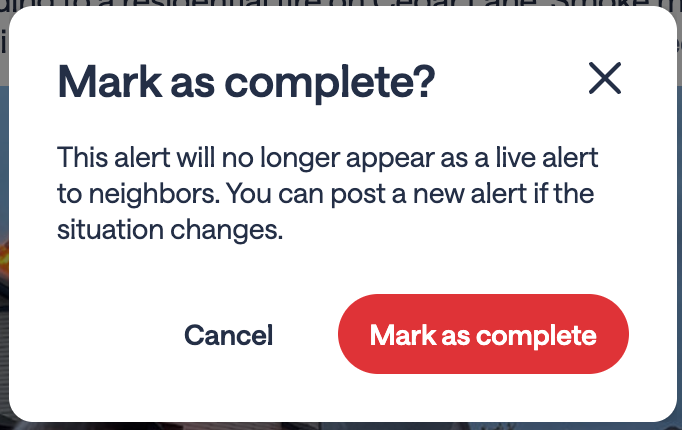
- Mark the Alert as complete by using the three dots next to the Alert and selecting “Mark as complete.” You can always create a new Alert if you completed this Alert and the issue arises again.
- If it is not obvious when the hazard ends, create a new Alert to close the loop. See the next section below.
When to post an all-clear Alert to close the loop
An all-clear is owed when neighbors were asked to do something ongoing, like shelter in place, avoid an area, boil water, or be on the lookout (BOLO). An all-clear is ONLY owed when it is NOT obvious the hazard has passed such as a boil water notice, shelter in place, and evacuation order.
This is one of the most commonly skipped steps, and research on post-Alert messaging shows it measurably reduces information-seeking and increases your agency's credibility.
When you issue an all-clear Alert, ensure you:
- Send the all-clear as a new Alert, targeted to the same area as the original. A standard post or comment reaches only a fraction of the neighbors who received the original warning.
Include: the hazard and location it refers to, the resolution status in plain words (contained, restored, lifted, expired), what neighbors may now do (return, resume, stop sheltering), and any guidance that still applies.
The above section was also adapted from Dr. Jeannette Sutton’s peer-reviewed Warning Lexicon research: a message missing any of these sends residents searching for confirmation instead of acting. Learn more at TheWarnRoom.com .
How to post an Alert
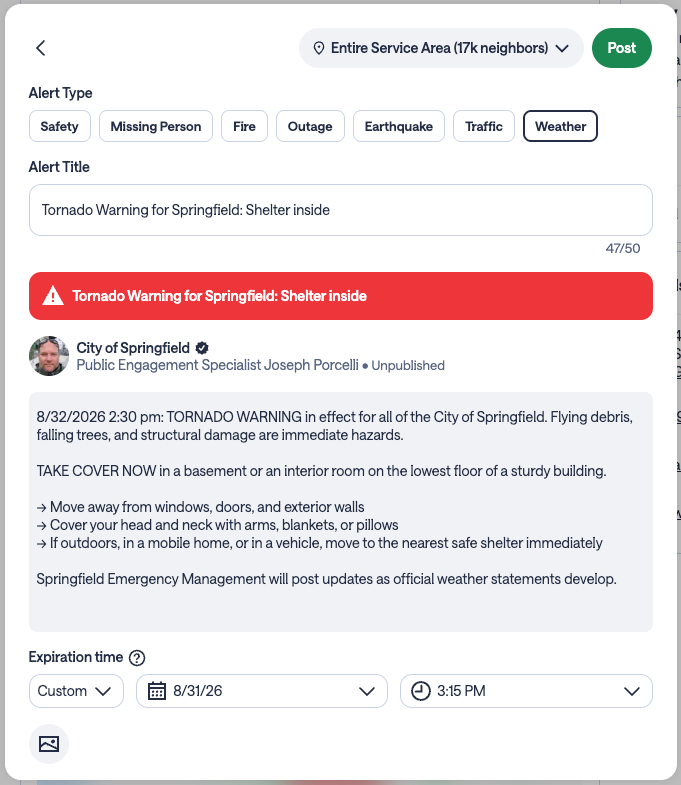
- Click the Alert post option at the top on the main page
- Select the Audience in the top right of the post composer. By default, your Alert will be sent to your entire service area. As needed, you can geo-target instead target your Alert to specific Nextdoor neighborhoods or your custom service areas such as flood and evacuation zones
- Select the Alert Type (Safety, Missing Person, Fire, Outage, Earthquake, Traffic, and Weather).
- Enter an Alert Title - Max 50 characters (example: Rocky Canyon Fire: Zone 3 Evacuate Now)
- Write your Alert message. In the body of the message, Include the date and time in your post and, if known, the expiration date.
- Provide links to trusted sources for updates if known.
- Select the Expiration Time of the Alert (hours or custom date & time). The default is 1 day.
- If available, attach images or videos. For watches and warnings, use map graphics to depict applicable areas (multiple graphics are okay). See requirements for images and videos in Upload images and videos to agency posts .
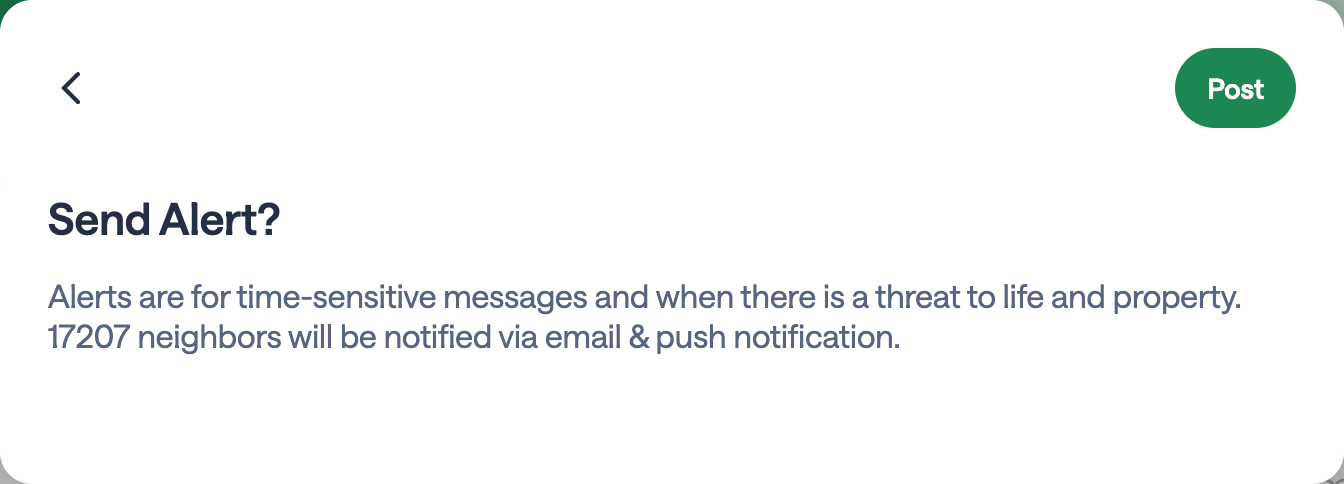
- Review and click Post.
How to update an Alert
- To post an update, click the three dots on the upper right side of the post, then select Edit. Amend the first line of the original Alert with "UPDATE:" and add the update above the original Alert. Create a new Alert for significant developments or when more than 30 minutes have passed.
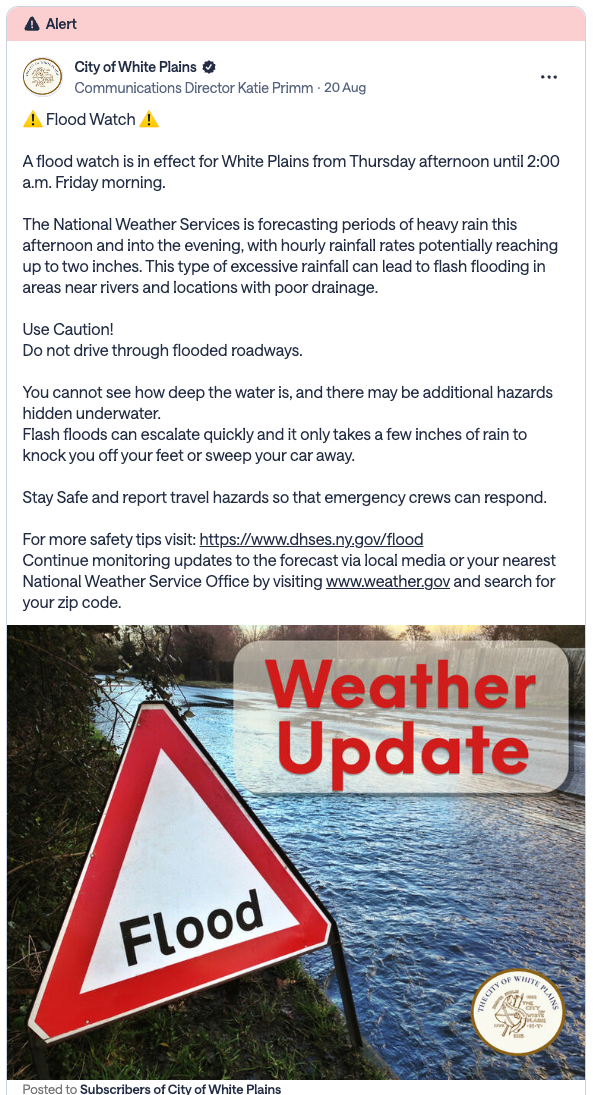
How an Alert looks in the Public Agency newsfeed
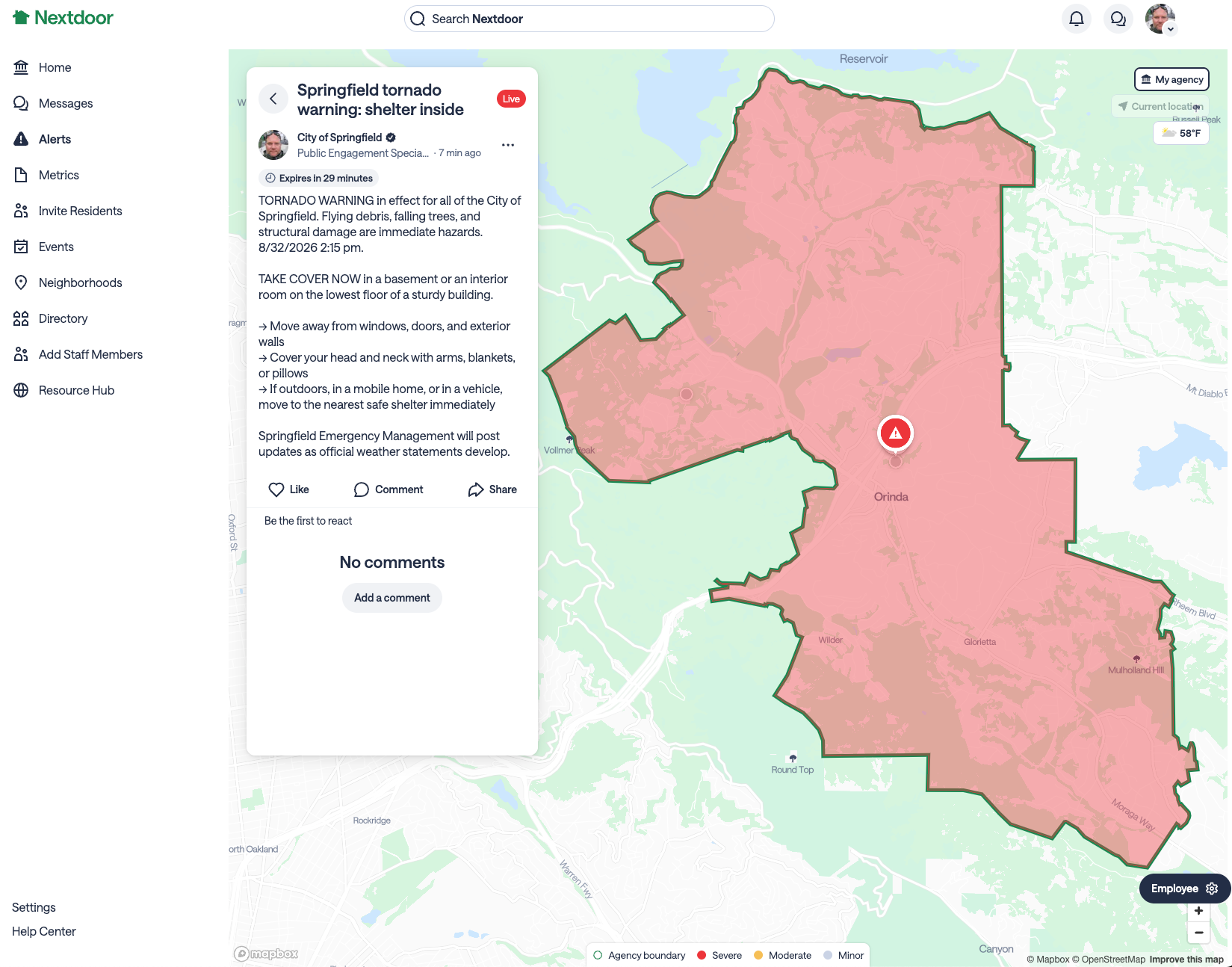
How an Alert looks in the Alerts map
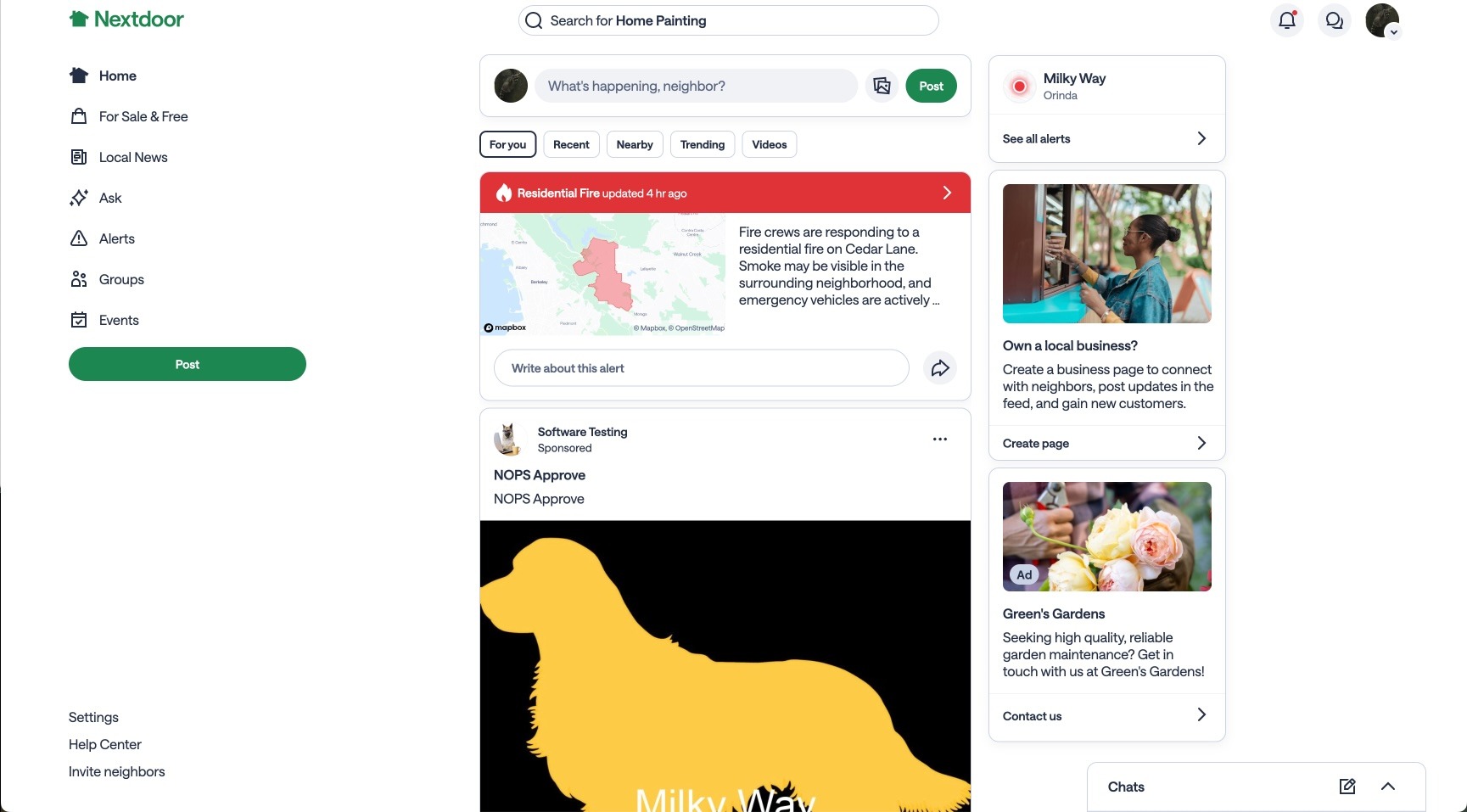
How an Alert looks in the neighborhood newsfeed
The Nextdoor Behavioral Comms & Alerting Prompt
For help writing Alerts and messages that compel residents to act, give our Behavioral Comms & Alerting Prompt a try. It weaves in Behavioral Science and Alerting Best Practices from Dr. Jeannette Sutton, founder of TheWarnRoom.com, and our best practices.
How to use the prompt:
- Go to nextdoor.com/commsprompt
- Copy and paste the prompt into your LLM
- Follow the prompts
- Review the message and paste the message into Nextdoor
- Step 5: Click Post
Comments (0)
Popular

Dive in
Related
Blog
What Public Agencies Need to Know About Advertising on Nextdoor
By Joseph Porcelli • Apr 16th, 2026 • Views 1.9K
Blog
Prepare now - Severe wind gusts, severe thunderstorms, and tornadoes are possible today, [Date]
By Joseph Porcelli • Jul 16th, 2026 • Views 1.1K
Blog
The Health Belief Model and your communications on Nextdoor
By Joseph Porcelli • Jan 23rd, 2023 • Views 481
Video
Why attend and what to expect at The Social Media Strategies Summit for First Responders for its annual virtual event on April 10-11, 2024
By Joseph Porcelli • Dec 21st, 2023 • Views 624
Blog
What Public Agencies Need to Know About Advertising on Nextdoor
By Joseph Porcelli • Apr 16th, 2026 • Views 1.9K
Blog
The Health Belief Model and your communications on Nextdoor
By Joseph Porcelli • Jan 23rd, 2023 • Views 481
Video
Why attend and what to expect at The Social Media Strategies Summit for First Responders for its annual virtual event on April 10-11, 2024
By Joseph Porcelli • Dec 21st, 2023 • Views 624
Blog
Prepare now - Severe wind gusts, severe thunderstorms, and tornadoes are possible today, [Date]
By Joseph Porcelli • Jul 16th, 2026 • Views 1.1K